

If you’re using Polylang to translate your website, you can also use AutoPoly – AI Translation For Polylang to translate the text using Chrome’s built-in AI.
Why Use Chrome Built-in AI?
Chrome’s built-in AI provides a fast and convenient way to translate your website content in real time. This method uses Google Chrome’s native AI translation features, so there’s no need to create API keys, pay for third-party services, or install extra tools.
Automatically Translate Page
Follow the steps below to automatically translate your webpage content using Chrome’s built-in AI:
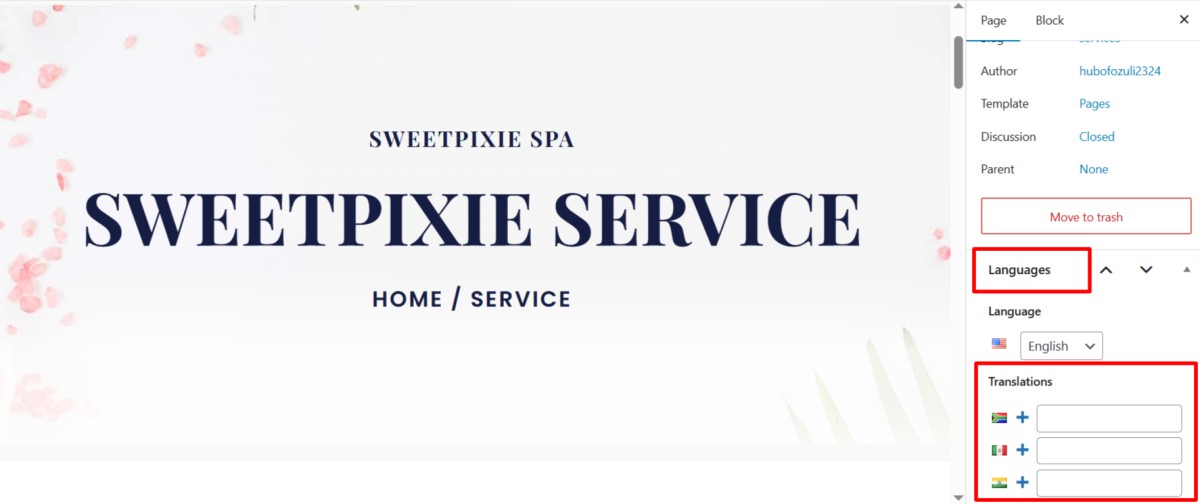
- On the right side of the page editor, there is a Languages settings tab. Under Translations, click the “+” icon.
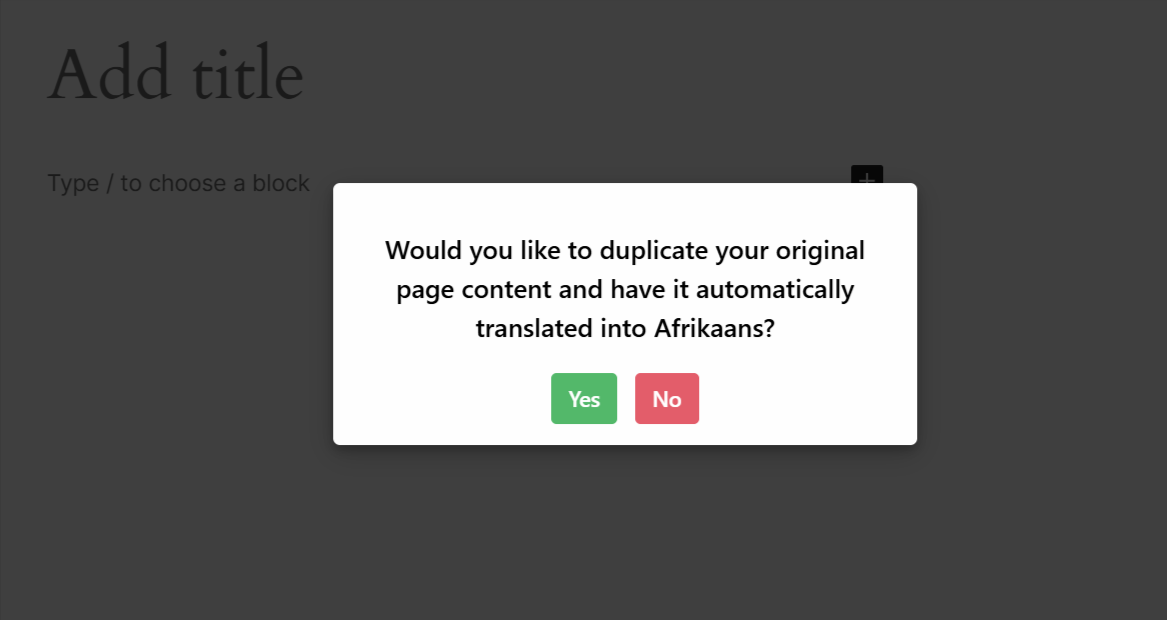
- A prompt will appear asking if you want to duplicate the original page content. Select “Yes”.
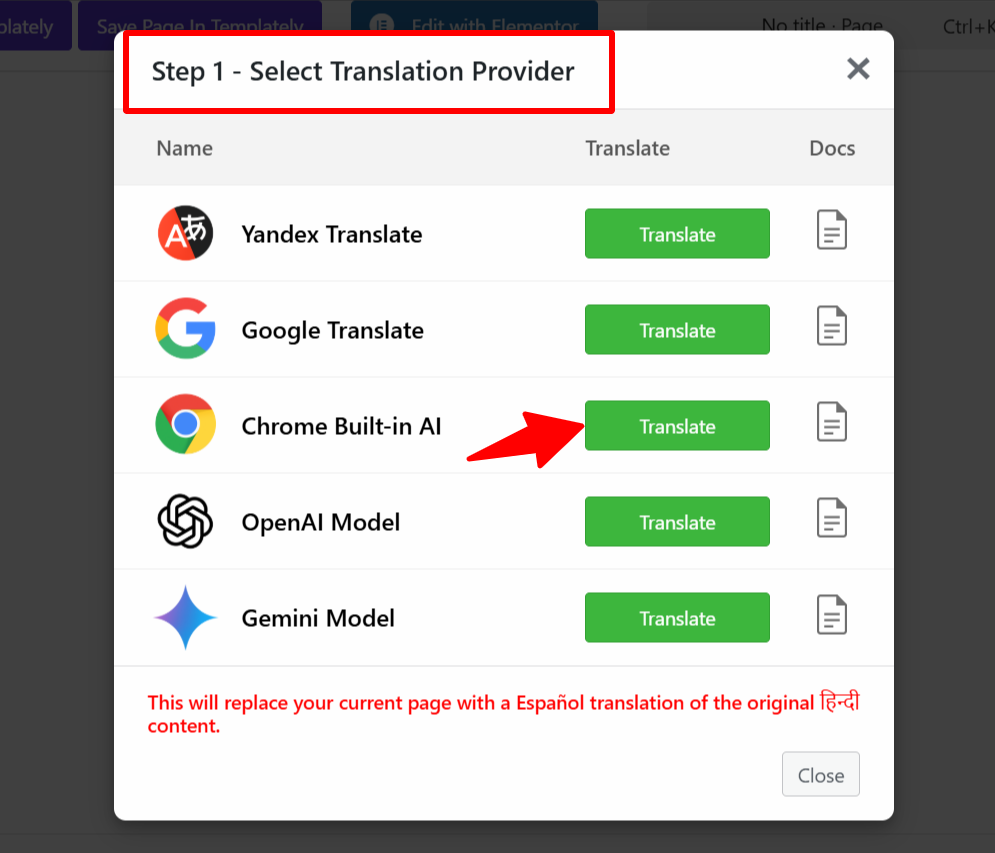
- Next, a new box titled Select Translation Provider will appear; choose Chrome AI Translator as your translation provider.
- Alternatively, you can:
- Go to the settings tab and select the Automatic Translation tab.
- Click on Translate Content, and a pop-up box will ask you to select a translation provider. Select Chrome AI Translator.
- Once selected, a tab containing both the source text and translation text will appear.

- Click Translate. The translation process will begin, and wait for a few minutes.
- After the translation completes, click Update Content.
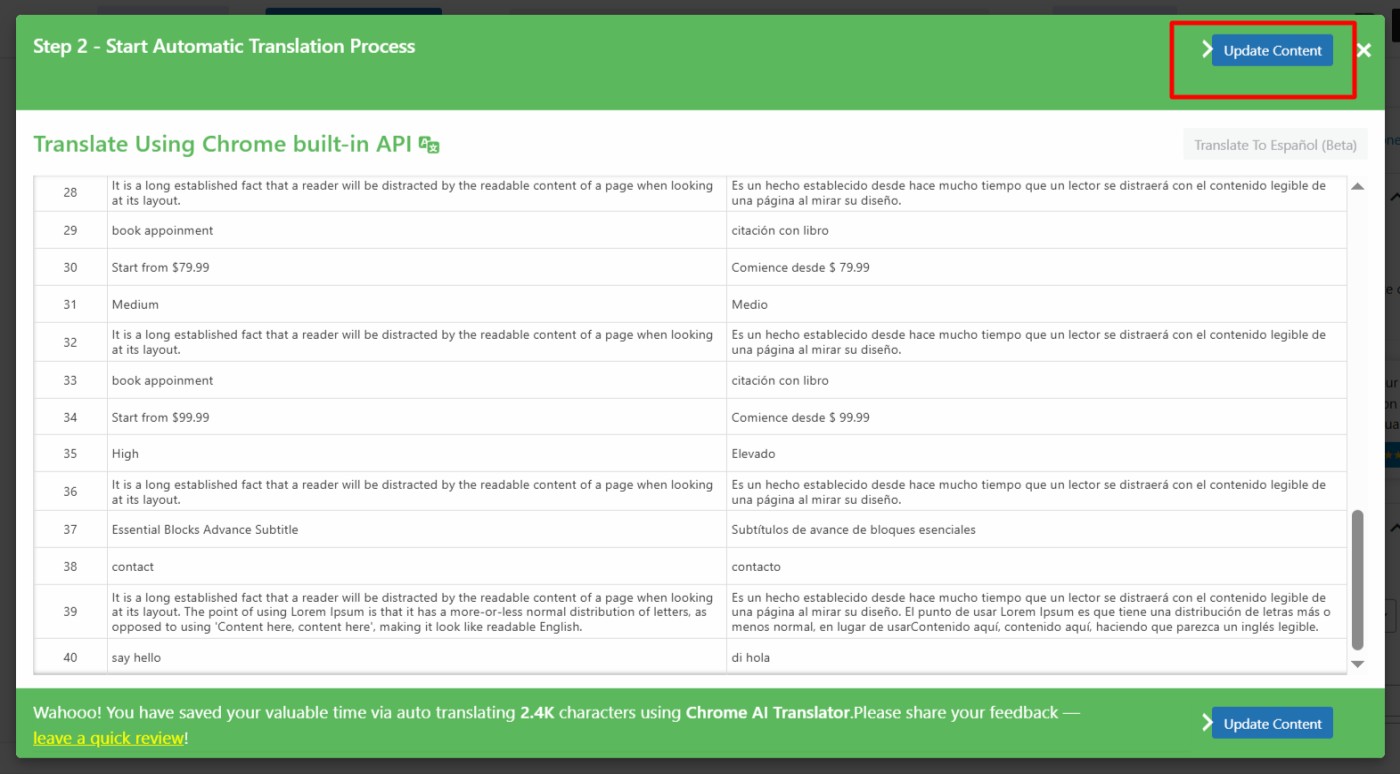
- Alle inhoud van de website wordt met één klik naar een geselecteerde taal vertaald. Bekijk het nu en maak handmatige aanpassingen voor betere nauwkeurigheid.
Dat is alles! Je hebt je webpagina succesvol vertaald via de ingebouwde AI van Chrome met behulp van AutoPoly – AI Translation For Polylang.